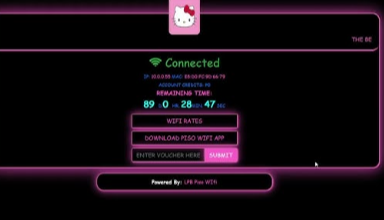
lpb piso wifi pause time
LPB Piso WiFi 10.0.0.1 Login – Admin Portal, Pause Time & Vendo Setup Guide
LPB Piso WiFi is a popular internet vending system that allows users to access WiFi by inserting coins or redeeming vouchers. The system is controlled through the 10.0.0.1 admin portal, where both customers and vendo owners can manage their connection and settings.
Customers can insert money, pause internet time, or redeem vouchers, while owners can control bandwidth, generate vouchers, set pricing, and monitor income.
What is 10.0.0.1 in LPB Piso WiFi?
The 10.0.0.1 IP address is the local portal used to access the LPB Piso WiFi system.
There are two main portals:
Customer Portal
Admin Portal
Customers use the portal to connect to WiFi, while vendo owners use the admin dashboard to manage the machine and network.
How to Insert Money in LPB Piso WiFi
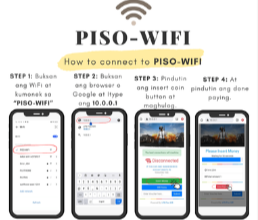
Follow these steps to connect to the Piso WiFi internet.
Step 1
Connect your phone or laptop to the Piso WiFi network.
Step 2
Open your browser and type 10.0.0.1 in the address bar.
Step 3
Tap the Insert Money option.
Step 4
Insert coins into the Piso WiFi machine.
Step 5
Click Done Paying once the payment is completed.
You will now be connected to the internet and can start browsing.
How to Redeem Voucher in Piso WiFi
If you purchased a voucher instead of inserting coins, follow these steps.
- Open 10.0.0.1 in your browser
- Locate the Voucher Code Box
- Enter your voucher code
- Click Submit
Once verified, your internet session will start immediately.
How to Pause Time in LPB Piso WiFi
One useful feature of LPB Piso WiFi is the Pause Time function. It allows users to stop their timer so they do not lose browsing minutes when not using the internet.
Steps to Pause Time
- Open 10.0.0.1
- Click the Pause Time button
Your timer will stop instantly.
To continue browsing later, simply click Resume Time.
How to Login to LPB Piso WiFi Admin Portal
The admin portal is used by vendo machine owners to manage the system.
Step-by-Step Login Guide
- Connect to the Piso WiFi network
- Open your browser
- Enter 10.0.0.1/admin
- Enter your username and password
- Click Sign In
Default Login Credentials
| Username | Password |
| admin | 123456789 |
After login, you will be redirected to the LPB Piso WiFi dashboard.
LPB Piso WiFi Admin Dashboard Features
The admin panel gives full control over your WiFi vending machine.
Key features include:
- Sales and income reports
• Client list monitoring
• Voucher generator
• Timer rates and pricing setup
• Network bandwidth control
• Machine schedule and system settings
• WiFi speed limiter configuration
These tools help owners manage their Piso WiFi business efficiently.
How to Generate Piso WiFi Vouchers
Vouchers allow users to connect to the internet without inserting coins.
Steps
- Login to the Admin Dashboard
- Open Voucher Generator
- Click Generate Voucher
Enter the following details:
- Peso amount
- Time duration
- Voucher validity
- Data cap (optional)
- Download & upload speed
Click Generate to create a voucher code.
The system will display the generated code in the voucher table.
How to Set Timer Rates
Timer rates define how long users can access the internet for a certain price.
Example
₱10 = 3 Hours Internet
Steps
- Go to Timer Rates
- Click Add Rate
- Enter the price and time
- Click Save
Your pricing plan will now be active.
How to Limit WiFi Speed
To prevent network congestion, you can limit bandwidth.
Steps
- Login to Admin Dashboard
- Navigate to Network Settings
- Select Speed Limiter
- Set upload and download speeds
- Save the changes
This helps distribute bandwidth evenly among users.
Final Summary
LPB Piso WiFi uses 10.0.0.1 as the main portal for customers and 10.0.0.1/admin for administrators. Customers can connect to the internet by inserting coins or redeeming vouchers, while vendo owners can manage the entire system through the admin dashboard.
With features like pause time, voucher generation, timer rates, and speed control, LPB Piso WiFi provides a simple yet powerful solution for running a WiFi vending business.
Frequently Asked Questions
What is the LPB Piso WiFi login page?
The login portal is available at 10.0.0.1 for customers and 10.0.0.1/admin for administrators.
What is the default admin login?
Username: admin
Password: 123456789
How do I pause my internet time?
Open 10.0.0.1 and click the Pause Time button.
Can I use vouchers instead of coins?
Yes. Enter the voucher code on the 10.0.0.1 portal to activate your internet session.